
Canva is famous for being “easy to use,” but that doesn’t always mean it’s easy to design well. That’s why many learners enroll in a Canva Master Course to understand not just how to use Canva, but how to design professionally.
If you’re new to Canva, you might find yourself overwhelmed by its features or tempted to try every flashy tool at once. The result? Designs that look cluttered, misaligned, or just… off. But don’t worry—every designer starts somewhere, and with a few mindset shifts and tool tricks, you’ll be creating polished visuals in no time.
Let’s explore three common “Themes of Failure” that trap beginners, especially with Canva’s latest features like Magic Animate and Magic Expand. Plus, for each mistake, ’ll share a “Pro-Fix” tip inspired by techniques taught in professional Canva design courses
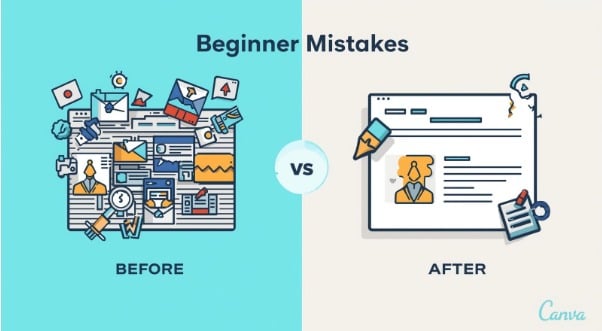
Theme 1: The “Buffet” Effect — Overloading Your Design
Imagine walking into an all-you-can-eat buffet and piling your plate with every dish in sight. That’s what happens when you try to use every Canva effect, animation, or graphic on one design. The new Magic Animate feature is tempting—it adds movement and flair—but too many animated elements can make your design feel chaotic and distract from your message. Similarly, Magic Expand can stretch your background or elements in unexpected ways, creating weird textures that clash with your clean look.
Pro-Fix: Think of your design like a well-balanced meal. Use the Tidy Up button like a chef arranging plates neatly on a table. It spaces out your elements evenly, keeping your design clean and digestible. Before adding animations, pick one focal point to highlight. Less is more.
Theme 2: The Alignment Trap — When Things Don’t Line Up
Beginners often ignore alignment, leaving text boxes, images, and icons floating unevenly. Canva’s snap guides help, but it’s easy to miss subtle misalignments, especially when you’re rushing. This trap makes your design look amateurish, like a crooked picture frame on the wall.
Pro-Fix: Use Canva’s Position tool as your “digital level.” It lets you center, align, and distribute objects with precision. Think of it like arranging books on a shelf—when everything lines up perfectly, the whole shelf looks tidy and intentional.
Inside a professional Canva Master Course, alignment and spacing are taught as foundational design principles — not optional extras.
Theme 3: The AI Over-Reliance — Trusting Features Without a Second Thought
Canva’s AI tools are powerful, but blindly trusting them can backfire. For example, Magic Expand might fill your background with textures that don’t match your brand’s vibe, or Magic Animate might add distracting effects that dilute your message. Relying too heavily on AI-generated suggestions can make your design lose its personal touch.
Pro-Fix: Treat AI features like a helpful assistant, not the boss. Use the Brand Kit to lock in your fonts, colors, and logos—your design’s “uniform.” This keeps AI suggestions from steering you off-brand. Think of it as giving your assistant a clear dress code so they don’t show up in a costume party when you need formal wear. In our structured Canva Master Course 2026, learners are taught how to combine AI with brand consistency and strategic thinking.
Other Common Mistakes and How to Fix Them
- Too Many Fonts: Mixing multiple fonts can confuse your audience and clutter your design.
- Pro-Fix: Stick to two or three fonts max. Use Canva’s font pairing suggestions as your “style guide” to keep your text harmonious, like a well-rehearsed band playing in tune.
- Ignoring Image Quality: Using low-res images or stretching photos leads to pixelated, unprofessional designs.
- Pro-Fix: Use Canva’s built-in photo editor to crop and adjust images without distortion. Think of it as framing a photo perfectly so it looks sharp and clear on your wall.
The Golden Rule: The Power of Negative Space
Here’s the secret sauce: don’t be afraid of empty space.
Design is not about adding.
It’s about removing.
The best designs in the world use:
- Fewer fonts
- Fewer colors
- Clear alignment
- Intentional animation
- Generous negative space
Negative space:
- Creates focus
- Builds elegance
- Increases readability
- Makes your brand look premium
In 2026, tools are smarter than ever. That’s why learning Canva strategically through a structured Canva course for beginners or advanced Canva design course makes a huge difference.
Great design depends on:
- Discipline
- Restraint
- Intentional choices
Canva makes design accessible. Your job is to make it meaningful.
And that’s where you move from being a beginner to becoming a designer.