
The Ultimate Tour of the Canva Editor : A Step-by-Step Guide for Beginners
Introduction to Canva Editor
Walking into the Canva editor for the first time can feel a bit like stepping into the cockpit of a jet. There are buttons everywhere, menus that pop out of nowhere, and a blank white screen staring back at you. If you’re feeling a little overwhelmed, don’t worry—that’s exactly why we made mastering the Canva Interface Explained the very first module in our Canva Master Course. Once you understand where your tools live, you stop “searching” and start “creating,” which is the secret to true speed design workflow efficiency.
Let’s break down the five main areas you need to know to navigate like a pro.
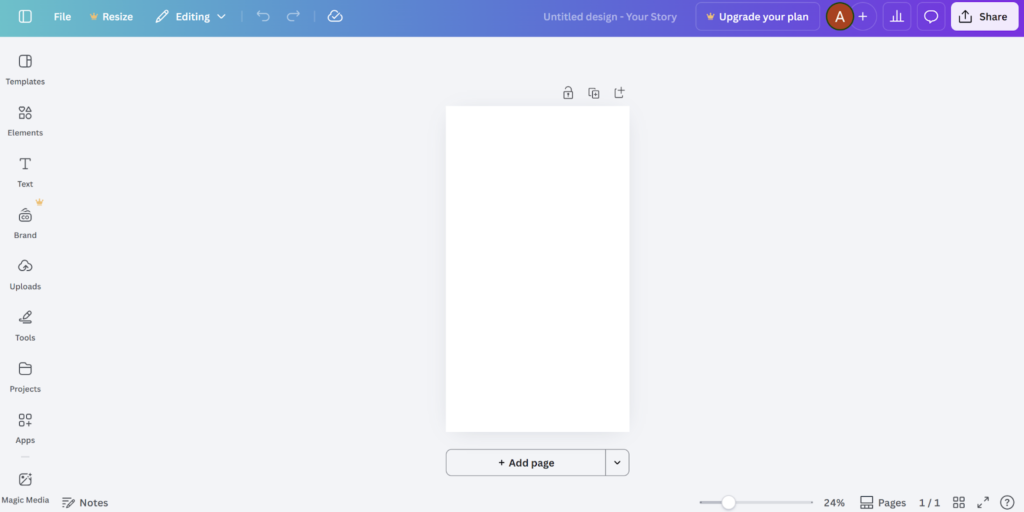
1. The “Command Center” (Top Menu)
Think of the very top bar as your administrative headquarters. This section handles the high-level logistics of your project rather than the creative details.
- The Home & File Buttons: If you ever get lost, the Canva logo or Home button takes you right back to your main dashboard. The “File” menu is your go-to for project settings, like turning on rulers or viewing your version history to see older drafts.
- Magic Switch: For those using Pro, this is a lifesaver. It allows you to instantly change the size of your design—say, turning a square Instagram post into a vertical Story—without starting from scratch.
- Organization and Sharing: You can rename your project by clicking the title field so you aren’t stuck with a dozen files named “Untitled Design”. When you’re finished, the “Share” button is the final stop to download your work, send it to a teammate, or post it directly to your social feeds.

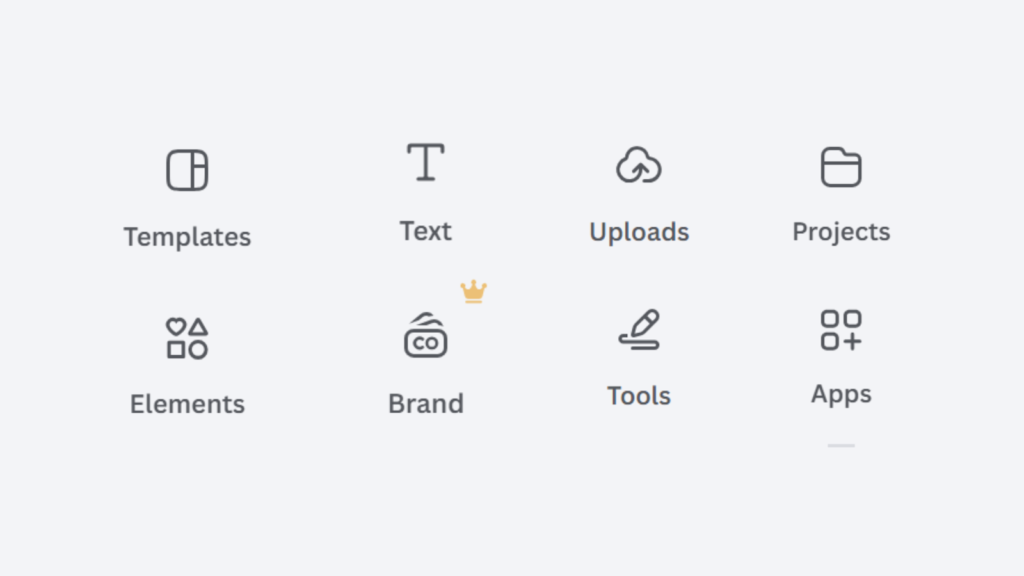
2. The “Creative Toolbox” (Side Panel)
Now, let’s move over to the left side of your screen. This vertical panel is your asset library; if you want to add something to your design, you’ll find it here.
- Elements & Templates: The “Design” tab lets you start with a professional layout, while the “Elements” tab is where you’ll spend most of your time. This is where you grab shapes, graphics, or even use “Magic Media” to generate images with AI.
- Brand Kit: This is the most important tool for High-Conversion Design. Instead of hunting for your specific hex codes every time, the Brand Kit stores your official logos, colors, and fonts so every post looks consistent.
- Text: Add headings, subheadings, and body text, or use pre-styled “Font Combinations.” You can use Magic Write inside the text icon to generate AI content.
- Projects: The Projects tab acts as your personal command center, allowing you to instantly access your recent designs, organized folders, and shared team assets without leaving the editor. By keeping all your creative work in one searchable hub, you can easily repurpose content and maintain a consistent design workflow across every campaign.
- Uploads & Apps: You can bring in your own photos or videos via the “Uploads” tab or connect to external tools like Google Drive or YouTube through the “Apps” section.
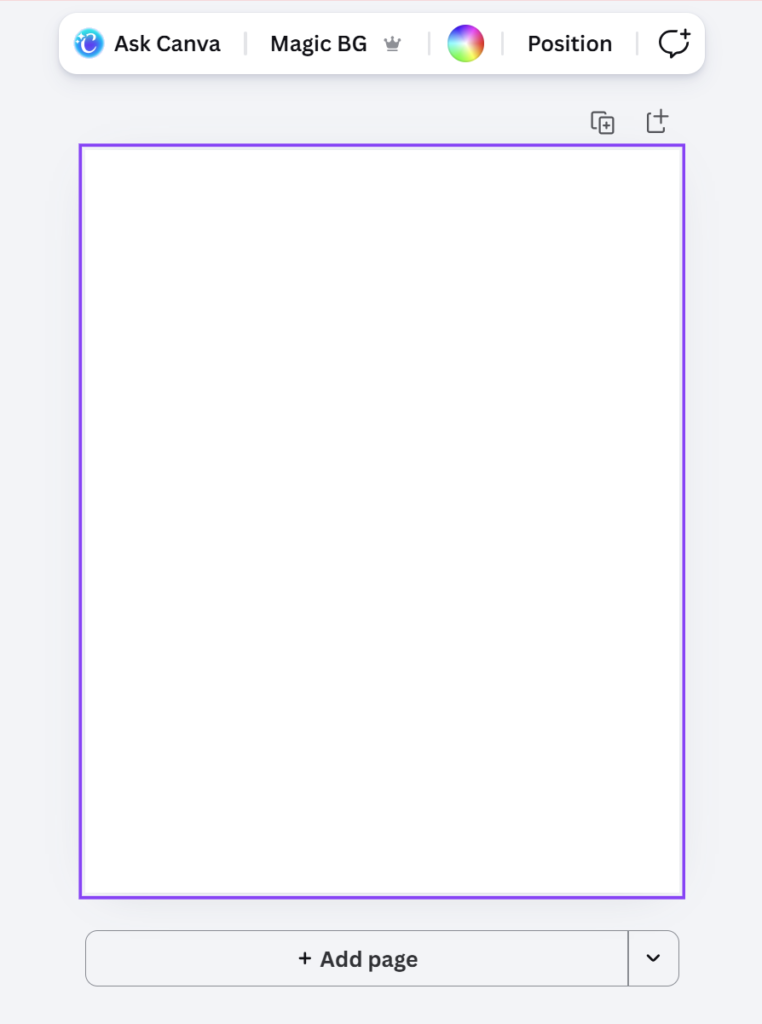
3. The “Magic Bar” (Contextual Toolbar)
This is the most “intelligent” part of this Canva Editor Guide. You might notice a horizontal bar appearing just above your canvas only when you click on an object. We call it the “Magic Bar” because its options change depending on what you’ve selected.
- Editing Text: Click a text box, and this bar lets you change fonts, sizes, and colors, or add styles like “Neon” or “Curve”.
- Perfecting Images: Click a photo, and the bar updates to show “Edit Image” tools, where you can remove backgrounds or add filters.
- Fine-Tuning: This is also where you’ll find “Position” to layer items (like putting text on top of a shape) and the transparency tool to fade elements for a more subtle look.
4. The “Creative Workspace” (Canvas & Bottom Bar)
The large white space in the middle—the Canvas—is where your ideas come to life.
- Page Management: Just above the canvas, you’ll find icons to lock a page (so you don’t accidentally move things), duplicate a design to try a second version, or add a fresh blank page.
- Precision Tools: If you’ve enabled them in the File menu, you can drag guides from the rulers to make sure everything is perfectly centered.
Finally, look at the very bottom of your screen. This bar helps you manage the “view” of your project. You can use the Zoom Slider to get close for detailed work or hit the Grid View to see every page of your project at once, which makes it easy to drag and drop pages into a new order. If you’re building a presentation, the Notes section and Present button are essential for finalizing your flow.

Conclusion: Designing with Confidence
Learning the layout is about more than just knowing where buttons are; it’s about building a foundation. When you aren’t hunting for the “Crop” tool or struggling to find your brand colors or elements, you can focus entirely on the quality of your work.
A streamlined workflow is the strong foundation of every great creator. If you want to learn from the basics to advanced techniques, join us in the Canva Master Course. We’ll show you how to take this interface and turn it into a powerhouse for your brand. Let’s get designing!
Related Posts

Collab vs Tag on Instagram: What’s the Difference & Which One Should You Use? (2025 Guide)
Confused between Instagram Collab and Tag features? Learn the key differences, benefits, and when to use each in this 2025 through this ultimate guide. Boost your reach, engagement, and brand strategy with the right approach.