Canva Keyboard Shortcuts - The Ultimate 2026 Cheat Sheet
In the world of digital marketing, the two pillars of success are “speed and polish.” If you are spending hours clicking through menus to find a single element, you are losing precious time that could be spent on high-level strategy. To achieve a pro-level Canva workflow, you need to master the art of design shortcuts.
The goal isn’t just to make things “look pretty”—it is to create high-impact visuals with maximum efficiency. This is a core pillar we emphasize in our Canva Master Course, where we instruct students on how to combine technical expertise with creative flair.
Rapid-Fire Canva Shortcuts
The quickest way to 10X your speed is to keep your hands on the keyboard. Here are the essential Canva Design Hacks:
- Instant Elements: Press R for a Rectangle, C for a Circle, L for a Line, or T for a Text box.
- Smart Duplication: Use Ctrl/Cmd + D to duplicate an element. Repeat this to maintain identical spacing between copies.
- The “Tidy Up”: Align multiple elements instantly by pressing Shift + Option/Alt + T.
- Precision Scaling: Hold the Option/Alt key while dragging an element’s edges to resize it from the center point rather than the corners.
- Layer Navigation: Use the Tab key to cycle forward through overlapping elements; use Shift + Tab to cycle backward.
- Quick Actions: Press Ctrl/Cmd + E to instantly search for graphics and specific effects like shadows.
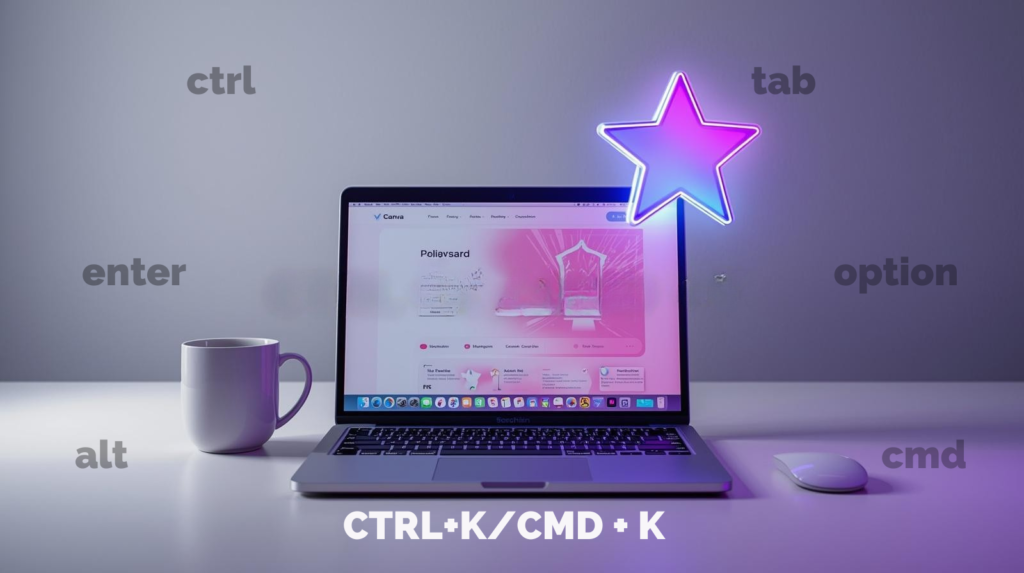
- Add links to Text: Press Ctrl/Cmd + K to add links to your text
- Frame Lock: If you have a frame on your canvas, hold Ctrl/Cmd while dragging a new image to prevent it from accidentally “snapping” into the frame before you’re ready.
- Adding New Page: Use Ctrl/Cmd + Enter to add a new page in the same Canva editor while designing instead of adding a duplicate page.
- Zoom in and Out: Press Ctrl/Cmd + (+/-) to add zoom in and zoom out effectively
- View Modes: Use Ctrl/Cmd + 1 to change your design mode to thumbnail mode. Use Ctrl/Cmd + 2 to view your design in grid modes. To view your design in presentation mode press Ctrl/Cmd + P
Conclusion:
Learning these shortcuts is just the beginning if you want to work faster and smarter as a designer. But let’s be real—design alone isn’t enough. If you want to stand out online, you need to know how your visuals actually drive results.
Want to level up from just “designer” to real Canva pro? Check out the Canva Master Course. You’ll get hands-on training on design automation and pro workflows that help you turn followers into customers. Sign up now and start creating designs that actually grow your business.
Related Posts

Master AI Strategy – High Converting ChatGPT Prompts for Social Media Managers
Sick of tossing basic prompts at ChatGPT and getting back the same old empty marketing fluff? You’re not alone. In digital marketing, nobody really cares about likes or shares—they look good, but they don’t pay the bills. What matters is conversion. If you keep...

10 Best AI Tools for Social Media Marketers in 2026 (SEO + Agentic AI Edition)
In 2026, social media marketing has entered a new era. We are no longer using basic AI assistants that just generate captions or suggest hashtags. The industry has moved from Assistive AI to Agentic AI, which are smart systems that independently plan, execute,...

The 2026 Hook: How Agentic AI is Revolutionizing Social Media Marketing
Entering 2026, social media marketing has experienced a profound transformation. The previous phase dominated by Generative AI—where artificial intelligence simply produced content on request—has now given way to the rise of Agentic AI workflows. Unlike traditional...